Set Up a Browser Wallet
To buy CYRUS from a desktop or laptop, you need a browser extension wallet that supports the Base network.
The two most common choices are Rabby and MetaMask. Both work as extensions in Chrome, Brave, and Edge. MetaMask also supports Firefox.
Which One Should You Use?
Rabby - recommended if you are starting fresh. It shows a clear preview of what each transaction will do before you sign it, which is useful when you are new.
MetaMask - a reasonable choice if you already have it installed and do not want to switch.
Either works fine. Install one and stick with it.
Install Steps
- Open the Chrome Web Store (or the extension store for your browser)
- Search for Rabby Wallet (recommended) or MetaMask
- Click “Add to Chrome” (or equivalent for your browser)
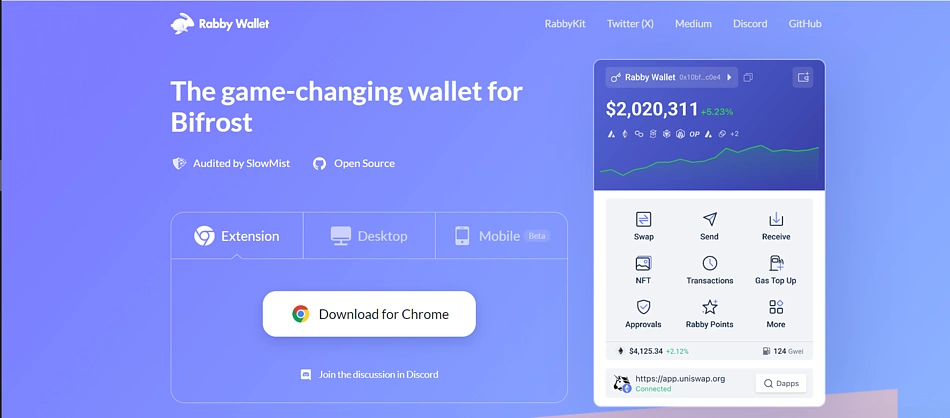
- Follow the setup prompts to create a new wallet
- You will be given a recovery phrase - 12 or 24 words
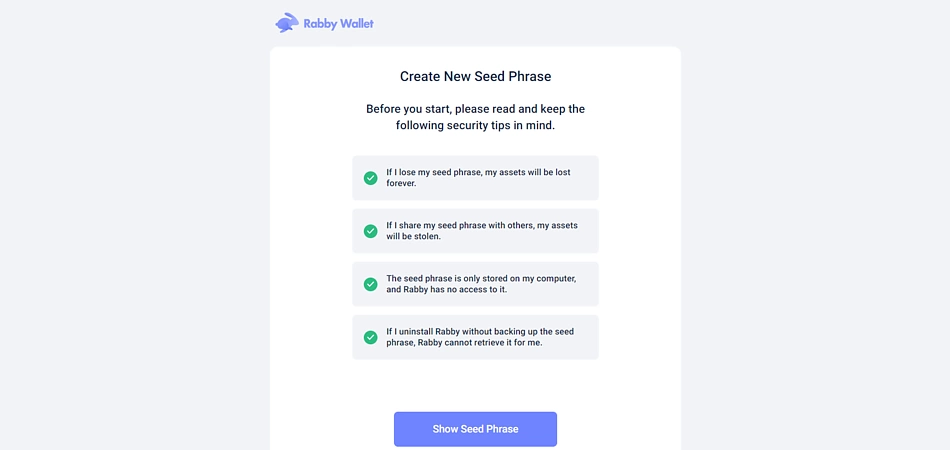
Write your recovery phrase down on paper and store it somewhere safe. Do not save it in a notes app, screenshot it, or email it to yourself. Anyone who has those words controls your wallet permanently.
Add the Base Network
Most wallets can add Base automatically the first time you visit a Base app. If yours does not, you can add it manually:
- Network name: Base
- Native gas token: ETH
If your wallet is showing Ethereum Mainnet, Arbitrum, or another chain, switch to Base before using the app.
MetaMask has a “Buy” button - ignore it. MetaMask is a wallet, not an exchange. It holds your crypto; it does not sell it. Tapping that button opens a third-party KYC flow inside the app, which is slower, more expensive, and completely unnecessary. Get your USDC from an exchange in the next step, then send it to your wallet address here.
Before You Move On
Make sure:
- the extension is installed and you can open it
- you have written down your recovery phrase offline
- you can see the Base network in the wallet
If you later buy CYRUS and the wallet does not display the token automatically, use the manual import guide: Add CYRUS to a Wallet.